To make faceless YouTube videos with AI you need five things: a topic, a script, a narrator, footage you are allowed to use, and an edit that puts the right picture on every sentence. AI can now do most of each step. You still decide what the video says and check what it shows.
This tutorial makes one real faceless documentary in VidGenn, step by step, with the real screens: a video about how smart octopuses are. After the steps, it shows how to publish the video on YouTube properly, and how to do the same job with separate tools if you prefer.
What you need before you start
- A niche and a first topic. Phrase the topic as a question or an angle, not a single word. The list of 48 faceless channel ideas has examples.
- A YouTube channel to publish on, and a few minutes to set it up with a name, picture and description.
- A VidGenn plan. Plans are counted in minutes of finished video, from $19 for 30 minutes a month (pricing). There is no free plan.
Step 1: Set up a brand profile (once)
A brand profile is your channel's style, saved once and used for every video. The studio makes one called "My channel" on your first visit. Its settings are grouped in tabs:
| Tab | What you set |
|---|---|
| Overview | Name, video language (English today), usual length, notes for the AI, and optionally your YouTube channel link, example titles and 1–3 example scripts whose style new videos copy |
| Voice | The default narrator |
| Look & graphics | One of six graphic styles (Science, Newspaper, Atlas, Luxury, Archive, Explainer) or automatic, plus graphics and transitions this channel should never use |
| Footage sources | Public-domain archives (Wikimedia Commons, NASA, Internet Archive films), free-licence stock (Pexels, Pixabay), or both |
| Editing style | Pace (a new shot every ~5, ~3 or ~2 seconds), how many graphics, section titles, burned-in captions, and background music (none or soft) |
| Script style | Tone, the kind of opening hook, the audience, research before writing, and words or topics to avoid |
Linking your YouTube channel only reads public information: the studio imports your titles so new ones match their style, and nothing is ever posted to your channel.
For a first video, the defaults are a sensible start: the graphic style picked automatically, standard pace (a new shot about every 3 seconds, like the large documentary channels), standard graphics (about one every 12 seconds), section titles on, captions off, no music, and research before writing. Change one thing at a time once you have watched the result.
Step 2: Type a topic, or paste your own script
The studio home is one box. On the Topic tab you describe the video and the AI writes the script. On the My script tab you paste a finished script (100 to 8,000 words), and it is read word for word. Pick the brand profile and, for a topic, the length: 3, 5, 8, 10, 15 or 20 minutes.
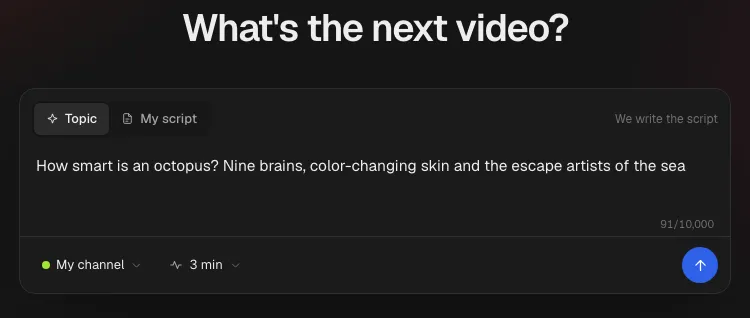
A good topic gives the AI an angle. "Octopus" is a subject; "How smart is an octopus? Nine brains, color-changing skin and the escape artists of the sea" is a video.
Step 3: Review the script and pick a title
When research is on, the AI reads Wikipedia and other public sources first, then writes four title ideas and the script while you watch. Choose a title or ask for more ideas. Every line of the script is editable, and edits save as you type.
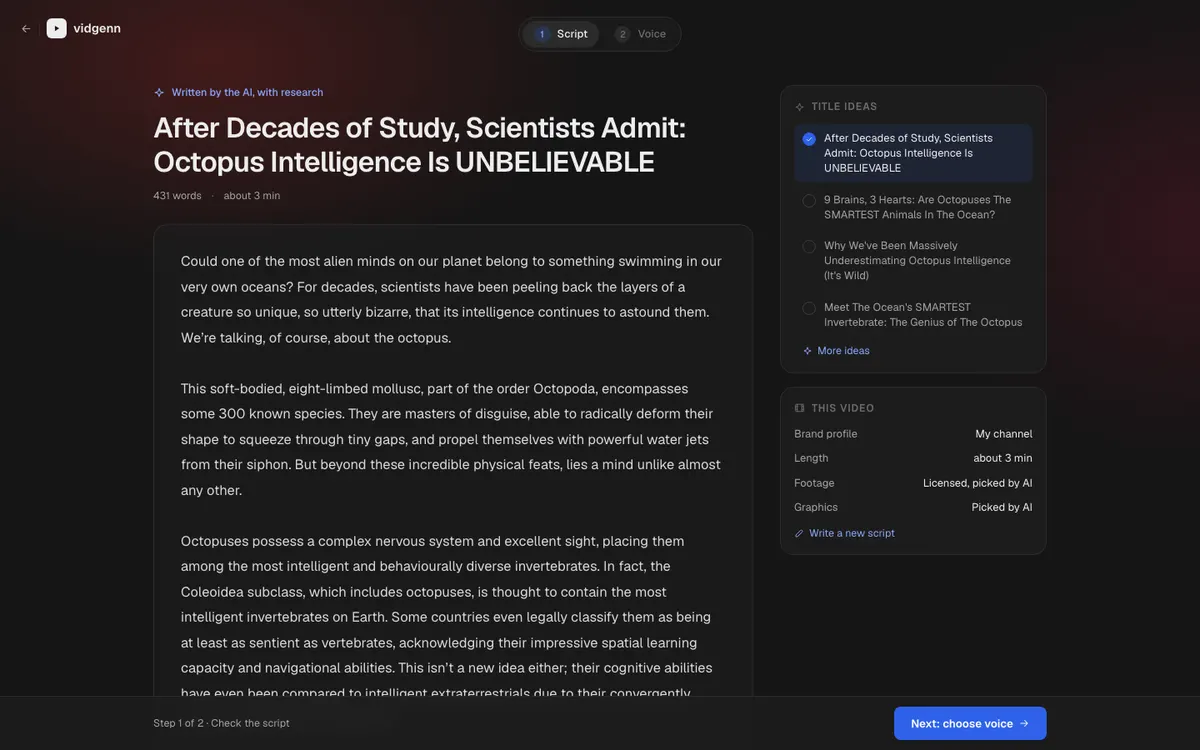
This is the step that makes the video yours, and the one YouTube's rules care about most. Check every number, rewrite the opening so it leads with a concrete fact, and cut sentences that say nothing. The script guide shows this exact octopus script before and after a human edit.
Step 4: Choose the narrator
Pick one of ten narrators, such as Atlas (a deep documentary voice), Melanie (a warm storyteller) or Hugo (rich and slow, for history). Each has a sample to play first. Keep the same narrator for the whole channel, so viewers recognise it.
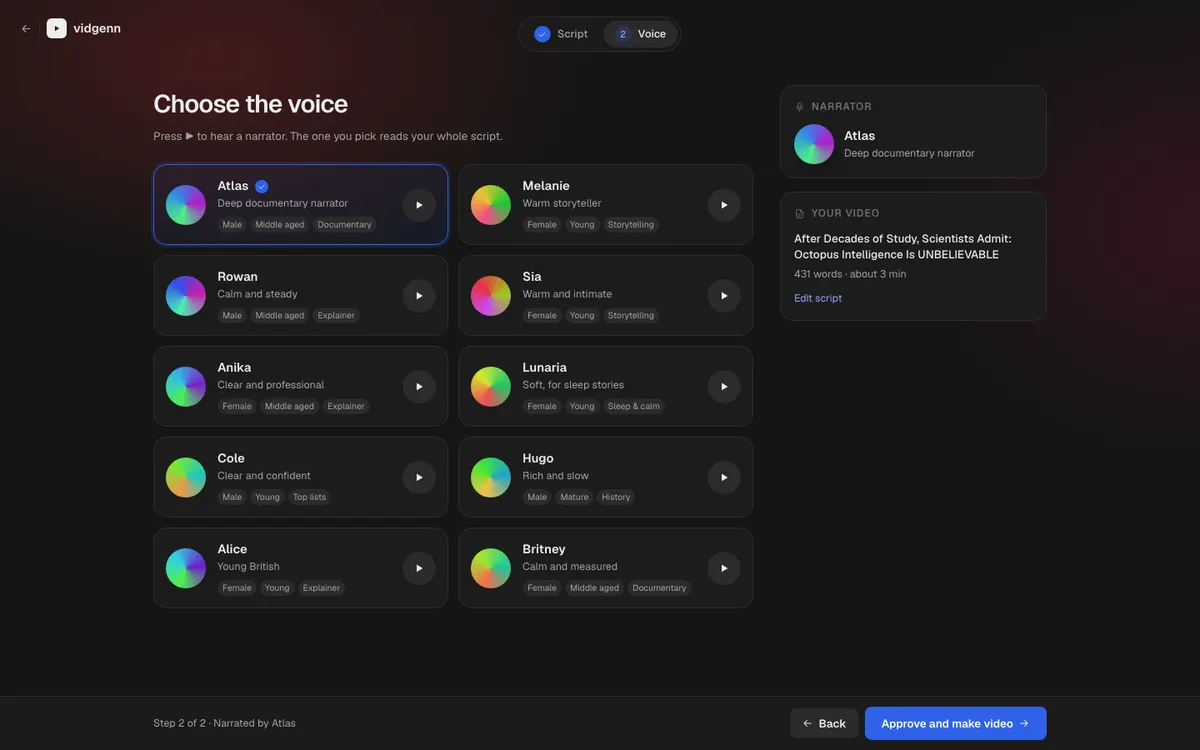
Before you press Make video, you can switch on Quick preview first: only the first 1½ minutes are made, so you can check the look before you spend minutes on the full length. The studio shows how many plan minutes it sets aside; you pay the video's real length, rounded up to the minute, and a video that fails gives them back.
Step 5: Let it find the footage and graphics
VidGenn now plans the scenes, records the narration, times every word, finds footage for every sentence, picks a shot for each one and designs the motion graphics. You can close the page meanwhile.
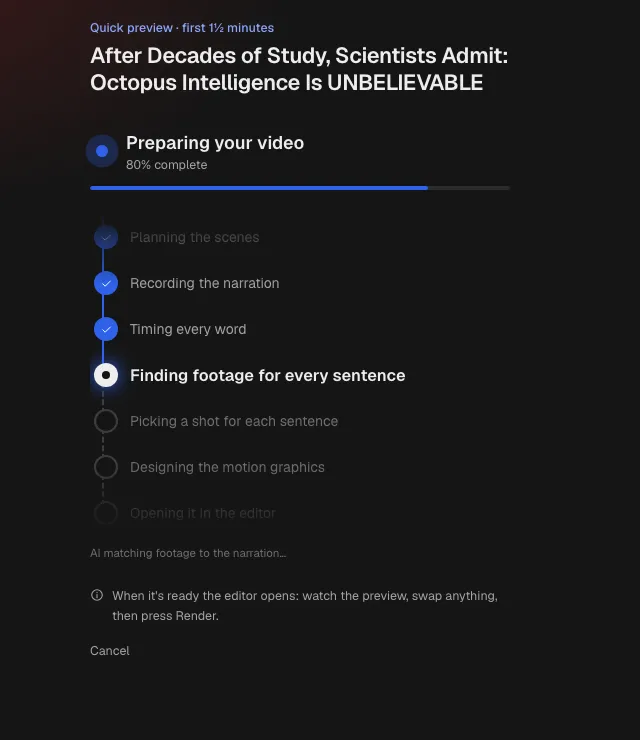
The footage comes only from Pexels, Pixabay, Wikimedia Commons, NASA, Openverse and public-domain items on the Internet Archive, never from YouTube, TV or films. The footage guide explains those licences. When no real footage fits a sentence, VidGenn may use an AI illustration, and the credits file says so.
Step 6: Edit the plan, then render
When the plan is ready it opens in an editor, before anything is rendered. The preview plays straight from the narration and the clips' own links. In the editor you can:
- Swap a shot for another clip found for that sentence.
- Pick which part of a clip plays.
- Change a graphic's text or design, or delete it.
- Check where each clip comes from: its source and licence are shown with it.
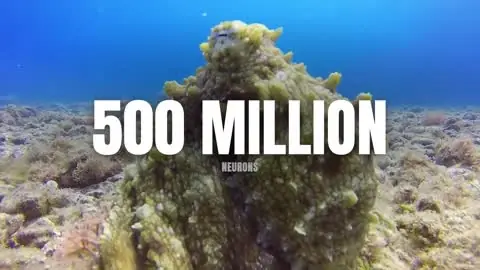
Watch the whole preview once. Look for clips that don't match the sentence (the wrong species, the wrong decade) and swap them. Then press Render video.
Step 7: Download the MP4 and the credits
The finished video is a 1080p MP4. Next to the download button, Credits copies the list of every clip's source, author and licence for your YouTube description, or downloads it as credits.txt. If you change anything later, edits and re-renders are free.
Step 8: Publish it on YouTube the right way
- Title and hook make one promise. If the title asks a question, the first sentence should restate it.
- Description: two or three lines on what the video covers, then the credits. Credits are required for CC BY and CC BY-SA files, and they are your evidence if a clip is ever claimed.
- Thumbnail: make one yourself; VidGenn doesn't design thumbnails. YouTube's disclosure rules treat AI help with a thumbnail, title or script as production help that needs no label.
- AI disclosure: tick YouTube's altered or synthetic content setting if a shot shows a realistic version of a real event that didn't come from real footage. Check the credits file for AI illustrations.
- Audience: set whether the video is made for kids honestly (YouTube Help). Most documentaries are not.
How to make faceless YouTube videos without an all-in-one tool
The steps are the same with separate tools: draft and research the script with a chatbot, record it yourself or with a text-to-speech service, download clips from the free libraries above, cut it in a video editor and design the thumbnail. It costs less money and much more time. In six faceless documentaries we measured frame by frame, the average shot lasted 2.8–3.6 seconds and a designed graphic appeared every 10–15 seconds, so a 10-minute video means placing roughly 200 clips by hand. The AI tools guide lists options for each job.
Five mistakes that make faceless videos look like AI slop
- A vague hook. "Could one of the most alien minds on our planet…" says nothing. Lead with a fact.
- Footage that doesn't match. Viewers notice when the narrator says octopus and the screen shows a squid.
- The same template every time. YouTube's monetization policies don't pay for content that "looks like it's made with a template".
- Facts with nothing on screen. A number, date or place deserves a graphic.
- Music louder than the voice. Keep it soft or leave it off; most documentary channels let the narrator carry the video.
Checklist before you upload
- You read the whole script once, and every number matches a source you trust.
- The first two sentences state a concrete fact and raise a question.
- Every clip shows what the narrator is talking about.
- The credits are in the description, and any AI illustration of a real event is disclosed.
- The title, thumbnail and opening make the same promise.
- This video is clearly different from your last one in story and structure.
Common questions
Can I make faceless YouTube videos with AI for free?
With separate tools, mostly yes: free footage libraries, a free editor and your own voice cost nothing. VidGenn has no free plan; plans start at $19 a month for 30 minutes of finished video.
Can I use my own voice?
In VidGenn you choose one of ten narrators; it doesn't record or upload your own voice. If you want your own voice, use the do-it-yourself route above.
How long should a faceless video be?
VidGenn makes videos of 3 to 20 minutes. Long enough to tell the story properly, and no longer: a tight 8-minute video beats a padded 15-minute one. The channel guide covers length and upload schedules.
Will AI-made faceless videos get monetized?
YouTube decides that for each channel, and it judges the videos, not the tools. Original scripts, licensed footage and real editing are what pass review. The monetization guide quotes the rules.